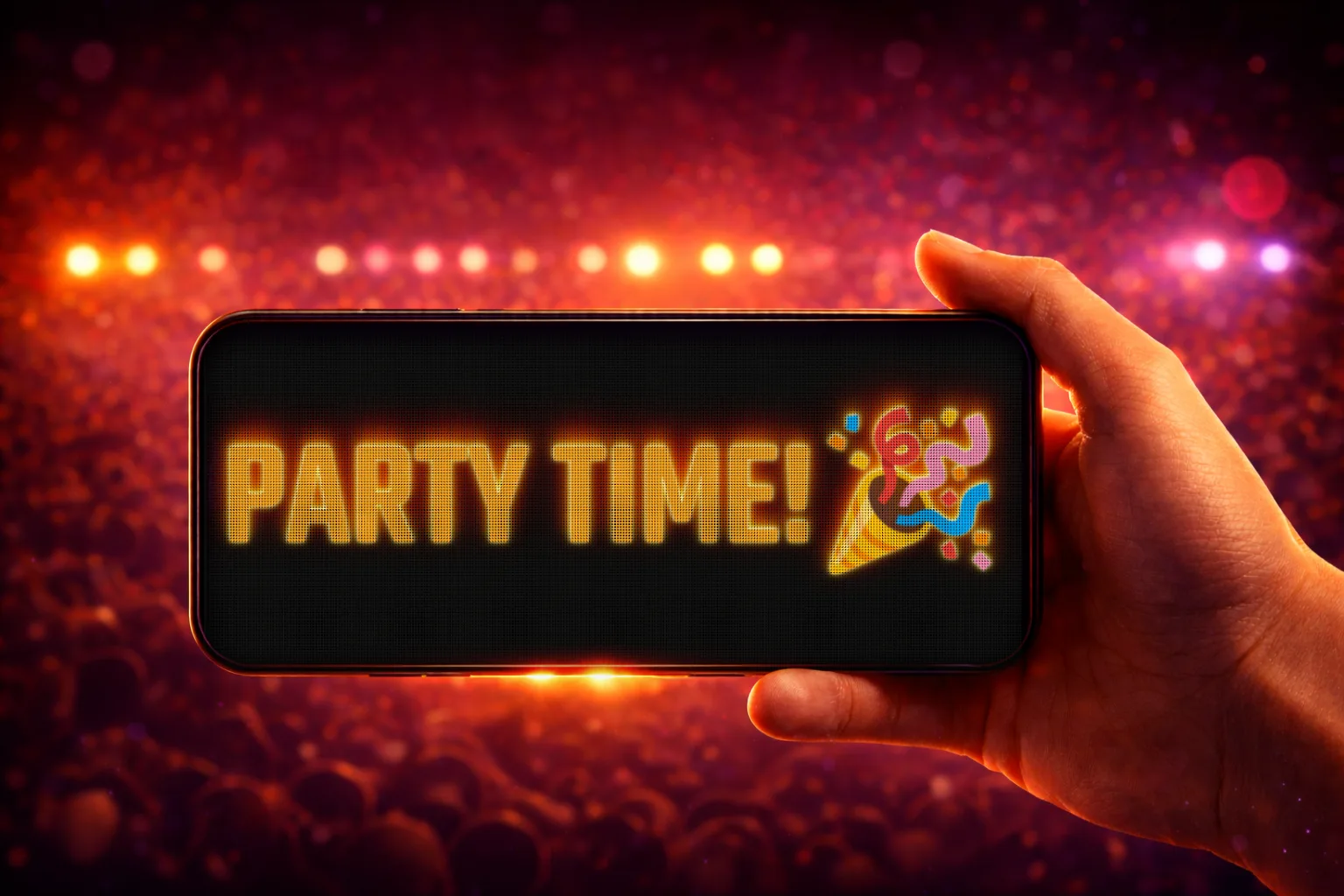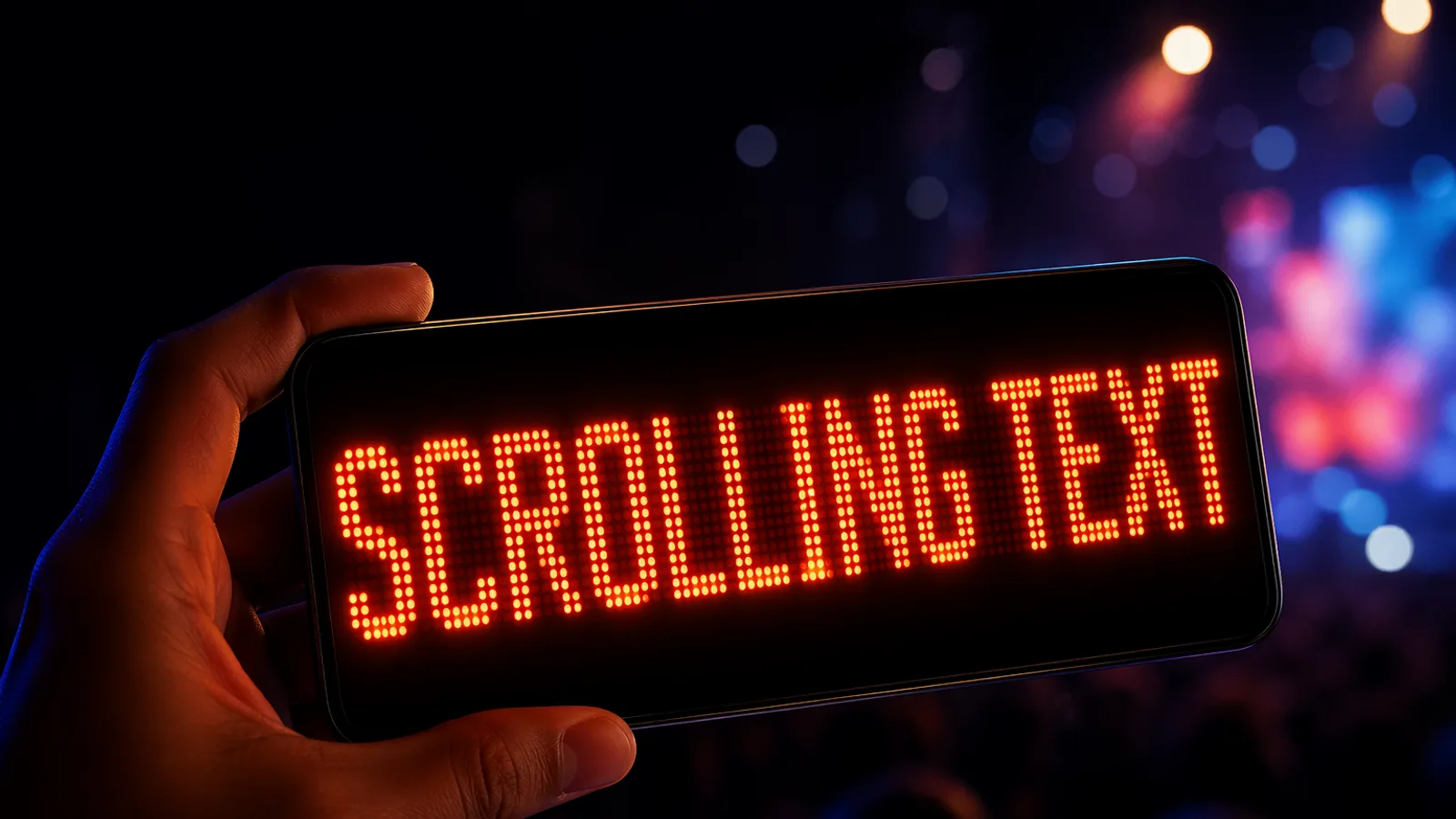
If you want to make scrolling text on your phone, the easiest method is to use an app that turns your screen into a full-screen LED banner. You type your message, adjust the look, and display it in large moving text that people can read from a distance.
That is exactly what LED Scroll Display is built for. Instead of trying to fake the effect in a video editor, slideshow app, or notes app, you can create a bright scrolling message in seconds and customize the speed, colors, font, background, and direction right on your phone.
If you only need the short answer, it is this: install a scrolling text app, type your message, make the text readable, and switch to full-screen mode. Once you do that, your phone stops feeling like a notes screen and starts working like a compact LED display you can actually use in public.
When scrolling text on a phone is actually useful
Scrolling text on a phone is not just a visual gimmick. It is useful anytime you need a message to be visible in a noisy, crowded, or low-light environment.
Common examples include:
- pickup signs at airports, train stations, and events
- party messages, birthdays, and concerts
- shop counter messages and quick promotions
- communication in loud places where speaking is hard
- personal messages that need to be large and easy to read
In all of these situations, a bright full-screen display is more practical than holding up a note or trying to type something in a standard notes app. It is faster to update, easier to see, and more flexible when conditions change.
The easiest way to make scrolling text on your phone
The easiest workflow is simple:
- Open a scrolling text app on your phone.
- Type the message you want to show.
- Adjust the size, colors, speed, and direction.
- Switch to full-screen display mode.
- Hold up the phone so the message is easy to read.
This is why a dedicated app works better than workarounds. You are not building a fake animation from scratch. You are using a tool designed for visibility, quick editing, and real-world use.
If you expect to use scrolling text more than once, even occasionally, installing the right app is usually the point where the whole idea becomes genuinely convenient instead of awkward.
How a phone becomes a useful LED display
Making text scroll is only half of the job. The other half is making the phone behave more like a visible sign than a normal app screen.
That usually depends on:
- full-screen presentation
- enough brightness for the environment
- text large enough to read in one pass
- motion that feels deliberate, not rushed
- contrast that holds up in crowds, stations, shops, or events
This is why people often search for both "scrolling text on phone" and "turn phone into LED display" when they are trying to solve the same problem. The end goal is not just animation. It is visibility.
How to create a scrolling text message with LED Scroll Display
With LED Scroll Display, the process is quick enough for spontaneous use but flexible enough when you want a more polished result. You can make something simple in seconds or spend a little longer refining it for better visibility.
1. Type your message
Start with the message itself. Keep it short enough to read quickly, especially if people will see it from a distance. Names, short announcements, pickup signs, greetings, and calls to action all work well.
Examples:
Emma, we are at Gate 4Happy Birthday LucasTaxi for Maria50% OFF TODAYHELLO FROM BARCELONA
2. Customize the text so it is easy to read
The next step is not just making the display look good. It is making it readable.
Good scrolling text usually depends on:
- text size large enough for distance
- speed slow enough to read in one pass
- strong contrast between text and background
- a font that stays clear at a glance
- colors that fit the environment without reducing visibility
LED Scroll Display lets you adjust the parts that matter most, including font, speed, direction, color, styling, and full-screen presentation. That makes it much easier to turn a rough message into something people can actually notice in a real environment, not just on your own screen.
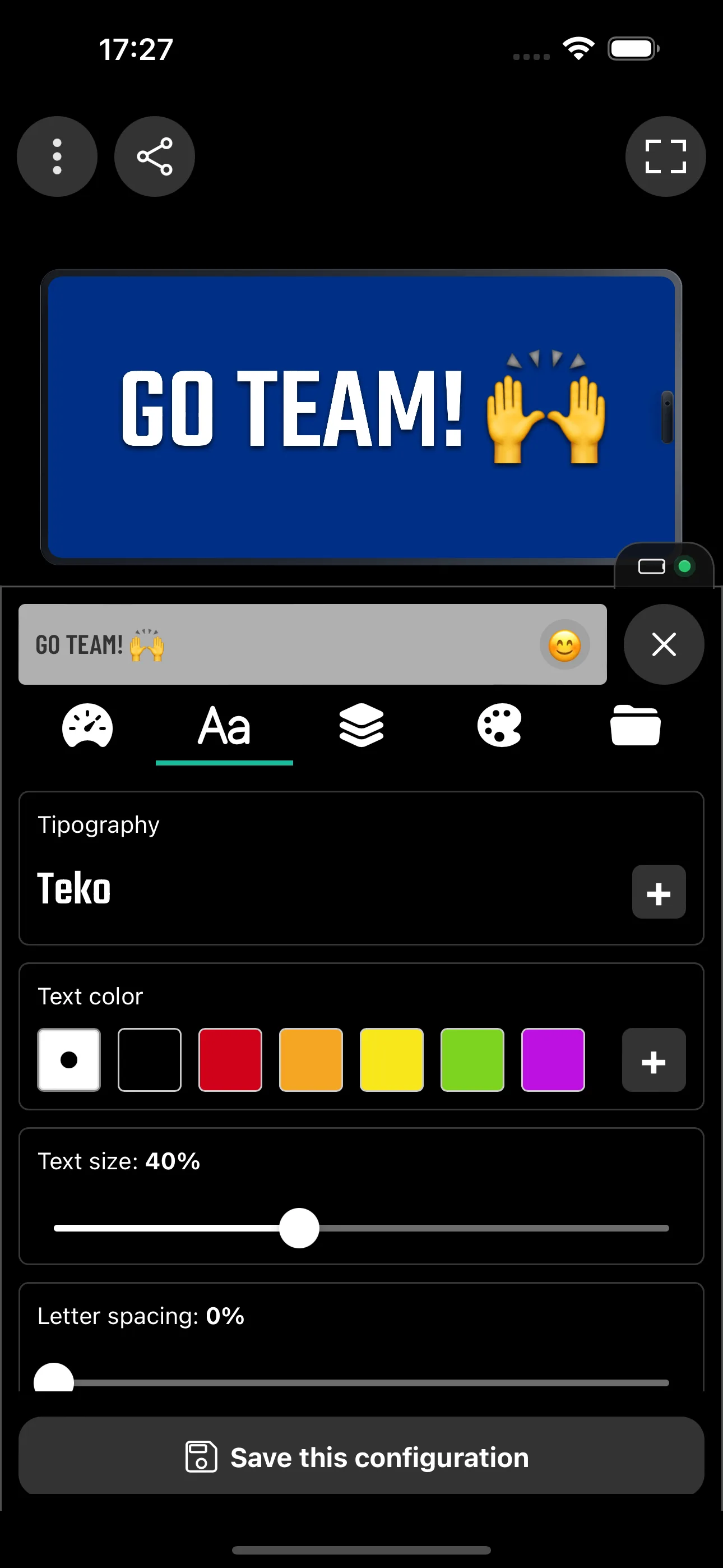
3. Use full-screen mode for better visibility
Once the message looks right, switch to full-screen mode. This is where the phone starts to feel like a real mini LED sign instead of just another app screen.
Full-screen mode matters because it removes distractions and gives more space to the text. That is especially useful for:
- pickup signs
- event messages
- storefront counters
- crowd communication
- nighttime visibility
If your goal is to get noticed fast, full-screen mode is usually the difference between a message that gets ignored and one that gets seen.
Tips to make phone scrolling text easier to read
If you want the best result, do not treat every message the same. A message for a concert crowd needs a different setup than a pickup sign at an airport.
Here are the most useful adjustments:
Use short wording
Long sentences are harder to read in motion. If possible, shorten the message and remove anything non-essential.
Slow the speed slightly
Many people set the text too fast at first. A slightly slower scroll usually improves readability more than dramatic visual effects.
Increase contrast
Bright text on a dark background is often the safest option, especially at night or indoors.
Match the font to the context
Bold, simple fonts work well for practical messages. More playful styles can work for parties or creative uses, but only if the words stay readable.
Test the message from a real distance
Before you rely on it, hold the phone farther away and check whether the message still reads clearly in one pass.
Raise brightness when the room is fighting you
If you are in a bright terminal, shop, or daytime venue, the message may need more brightness than you expect. Contrast matters more than effects, and screen brightness is part of that.
Common mistakes when making scrolling text
Most poor scrolling text messages fail because of setup, not because the idea is bad.
| Problem | What it looks like | Better fix |
|---|---|---|
| Too many words | people stop reading halfway through | cut the message to one idea |
| Speed too high | the text feels exciting but unreadable | slow it until one pass is enough |
| Weak contrast | the message disappears in the room | use bright text on a dark background |
| Text too small | the phone looks like a normal screen | increase size before adding effects |
| Wrong orientation | the message has less usable space | rotate the phone before fullscreen mode |
If you are unsure what to adjust first, shorten the wording. That usually improves every other setting because the message becomes easier to size, easier to read, and easier to remember.
Best settings for different situations
The right scrolling text setup depends on where you will use it. A pickup sign and a party message do not need the same style.
For pickup signs
Use a short name, large text, slow speed, and high contrast. Clarity matters more than personality.
For events and concerts
You can be more expressive. Bright colors, bold fonts, and a slightly faster scroll can work well as long as the message is still readable.
For shops and counters
Keep the wording simple and direct. Offers, opening messages, and short instructions usually work best with a stable, easy-to-read style.
For fun messages and social content
This is where extra color, backgrounds, emojis, and more playful styling can make the message feel more personal.
Quick setup recipes
Use these starting points when you want a usable result without testing every control from scratch.
| Use case | Message length | Speed | Style priority |
|---|---|---|---|
| Airport pickup | 1 name or 2-3 words | slow | maximum readability |
| Concert sign | 3-6 words | medium | bold color and contrast |
| Shop counter | 2-5 words | slow to medium | clear offer or instruction |
| Birthday message | 3-8 words | medium | personality without losing readability |
| Silent communication | 1 direct sentence | slow | clarity over decoration |
These recipes are only starting points, but they help prevent the most common mistake: designing the message for your own screen instead of for the person trying to read it.
Extra setup tips if you want it to feel more like a LED sign
If your goal is not just to show text but to turn the phone into a practical LED-style display, these small details help:
- lock the phone orientation before showing the message
- increase brightness if the location is well lit
- keep the message shorter than you think you need
- avoid switching apps once the display is live
- use a charger or power bank for long waits or events
These are not advanced tricks, but they are the difference between a quick demo and a phone display that actually works when you need it.
Why not just use a notes app or video editor?
You can technically fake scrolling text with other tools, but it is usually slower and less practical.
A notes app does not give you a real scrolling display. A video editor is too heavy for quick real-world use. Presentation apps are not designed for bright, full-screen LED-style messages you need to edit on the spot.
A dedicated scrolling text app is better because it is built for:
- fast message changes
- full-screen visibility
- speed and direction control
- text styling and backgrounds
- repeated use in real situations
If you expect to use your phone as a sign more than once, a dedicated app saves time immediately.
Best use cases for a phone LED display app
If you are wondering whether this is worth installing, these are the use cases where it makes the most sense:
- meeting someone in a crowded place
- making a birthday or party message
- showing a shop or counter sign
- displaying a short announcement at an event
- creating a fun personal LED banner for photos or videos
This is also where the app naturally becomes more than a one-time trick. Once you realize how many situations benefit from large readable text on a phone, it becomes a handy tool to keep installed.
What makes a good scrolling text app?
If you are comparing options, the best scrolling text app is usually the one that helps you get to a clear result fast.
Look for:
- full-screen display mode
- easy message editing
- speed and direction controls
- font and color customization
- backgrounds or effects when you want more visual impact
- a workflow that feels fast enough to use in the moment
That is the real difference between an app you install once and forget and one you actually keep on your phone for events, pickup signs, and everyday use.
Download a scrolling text app instead of improvising
If your goal is to make scrolling text on your phone quickly, the most practical route is to use a purpose-built app instead of piecing together a workaround.
LED Scroll Display helps you create bright scrolling messages, adjust the visual style, and show them full screen in seconds. That makes it useful for everyday communication, events, pickup signs, fun messages, and quick promotional displays.


If you want to try it for yourself, start with a simple message and test it in full-screen mode. In most cases, you will get a much better result than trying to improvise the effect with the wrong tool.
If you only need a fast recommendation: install the app, type a short message, increase the text size, slow the speed slightly, and turn on full-screen mode. That alone is enough to create a scrolling phone sign that looks deliberate instead of improvised.