LED Scroll Display Web can add the current time, a stopwatch, or a countdown timer to a scrolling LED display. The time element can appear before or after your message, or you can hide the message and show the time on its own.
Choose the mode by asking what viewers need to know: the time now, how long something has been running, or how long remains. Then keep the accompanying message short enough to read as it moves across the screen.
Choose the clock or timer that answers the right question
The web editor's Clock control has three modes. They look similar on screen, but each communicates something different:
| Mode | What viewers learn | Example message | Good fit |
|---|---|---|---|
| Current time | What time it is now | WELCOME — 14:35 | A shared room, event space, or counter where visitors need orientation |
| Stopwatch | How much time has passed | DEMO IN PROGRESS — 00:02:14 | A demonstration, presentation, or timed activity already underway |
| Timer | How much time remains | BREAK ENDS IN — 00:04:30 | A break, session start, or scheduled activity with a known end point |
The example times are only illustrations. Use a current clock for “now,” a stopwatch for elapsed time, and Timer for a countdown. A current clock does not calculate time left until closing or an event; that is a different job from showing the time of day.
Set up a scrolling message with a time element
- Open LED Scroll Display Web on the screen people will see.
- Enter a short message, such as
BREAK ENDS IN, or leave the message hidden if the time itself is enough. - Turn on Clock, then choose Current time, Stopwatch, or Timer.
- Place the time element before or after the message. For a clock-only or timer-only display, hide the scrolling text.
- Use Fullscreen and check that the message and time are legible from the audience's actual viewing distance.
The Clock choices are part of the scrolling display. If people need to understand the timer immediately, put its purpose in a short label and avoid a long message that makes them wait for the important information to pass.
Open a ready-to-use clock setup
These examples open a preconfigured display in LED Scroll Display Web. The time shown on the first card is only an illustration; the editor shows the current local time. The stopwatch and countdown open at zero and five minutes, respectively, and stay paused until you press the play control in the Clock settings.
Open a clock or timer setup
Set a five-minute break timer
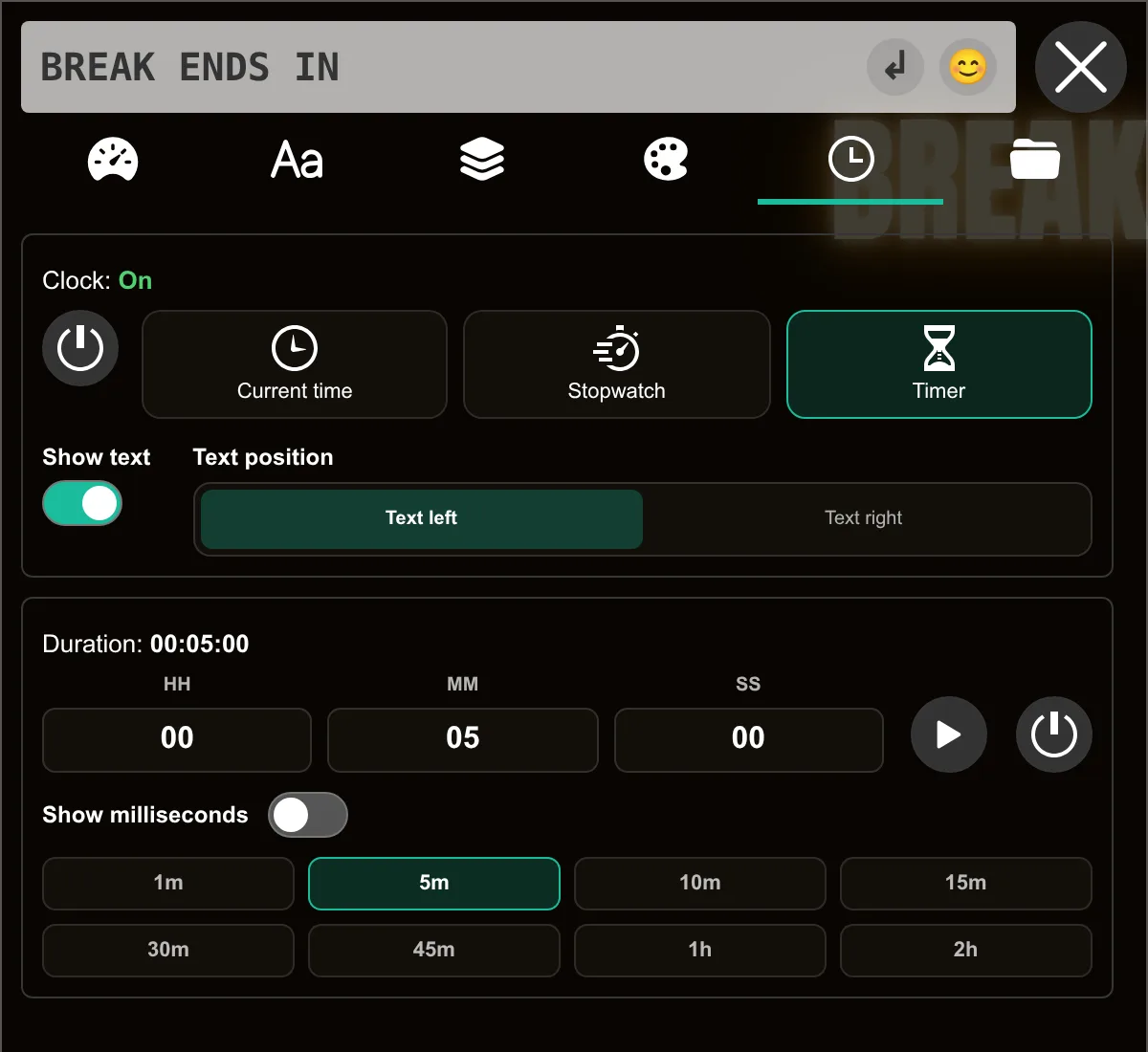
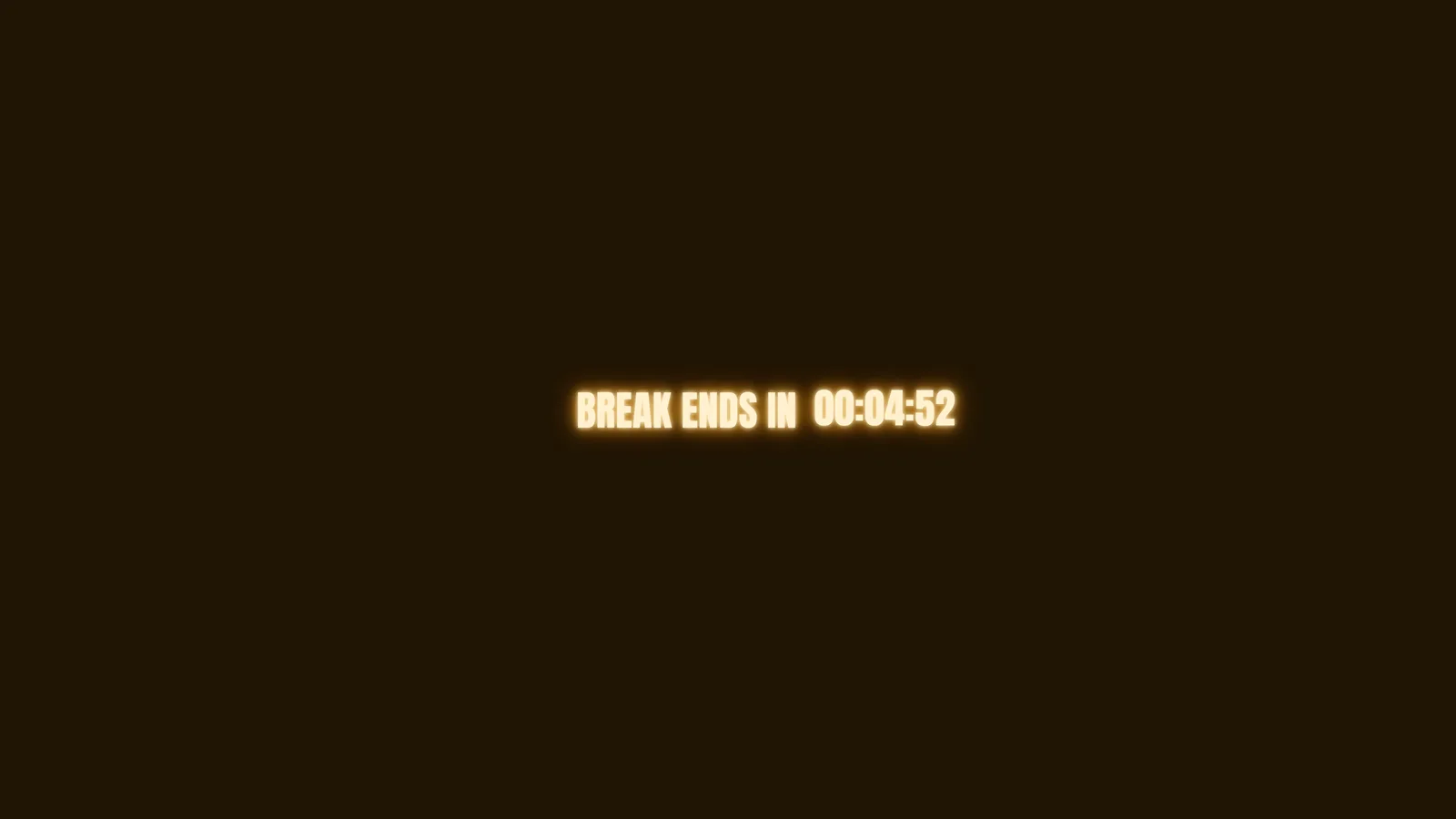
In the Clock panel, choose Timer, set the duration to five minutes, and keep a short label such as BREAK ENDS IN visible. Start the timer before switching the display to fullscreen. The screenshots below show the actual editor controls and the running countdown; the recording follows the same setup from the ready-to-use example.
Three practical display recipes
Give a break a clear end time
Choose Timer and pair it with BREAK ENDS IN. Press play when the break begins. This tells someone who has just entered the room what the changing number means. Keep the rest of the line short so the instruction and remaining time are easy to catch.
Show how long a demonstration has been running
Choose Stopwatch and add a brief context line such as LIVE DEMO. Press play to start it. This is useful when elapsed time is part of the activity; if attendees instead need to know when the demonstration will finish, use Timer.
Add orientation to a shared space
Choose Current time and pair it with a short welcome or notice, for example WELCOME — PLEASE TAKE A SEAT. If the message does not add useful context, hide it and use the time element on its own.
Check the display from the audience's position
The display has two pieces of information to communicate, so test the full line rather than judging each setting in the editor:
- Can a first-time viewer tell what the timer is counting?
- Can they read the label and time before those elements move out of view?
- Does the message add context, or does it compete with the changing time?
- Is the text still clear on the actual monitor, projector, or TV at its normal brightness?
Shorten the message if viewers have to wait too long for the useful part to reappear. If timing is the only information that matters, hide the message. For a broader comparison of the simple generator and advanced editor, see which scrolling text tool to use; for screen hardware, read the portable LED message board guide.
Make this display for your screen
Open LED Scroll Display Web, choose the Clock mode that matches your audience's question, and add only the message needed to explain it. Test it full screen before using it in a live event, class, shop, or stream. If the phone itself will be the sign, explore the LED Scroll Display app.